Since 17.9, Translation Manager has had a Glossary: one list of the terms you need translated a particular way, or not translated at all, that the machine and AI connectors read every time they translate.
dotnet add package Jumoo.TranslationManager
The problem
Machine translation is good. It's also confident, and it doesn't know anything about your organisation.
Your product names get translated. Your brand gets translated. The term your industry has agreed on in German gets swapped for a perfectly reasonable word that nobody in your industry uses. And because a lot of this happens in the background now, you often don't notice until a translator (or worse, a customer) points it out.
Translation Memory helps a bit here: once you've fixed a phrase, the fixed version gets reused. But memory works on whole phrases, after the fact. What you actually want is to tell the translator up front: this word, always this way.
That's what a glossary is.
Where it lives
The Glossary sits in the Translations section, below the job lists, next to Translation Memory. The Translations dashboard shows how many terms you have.
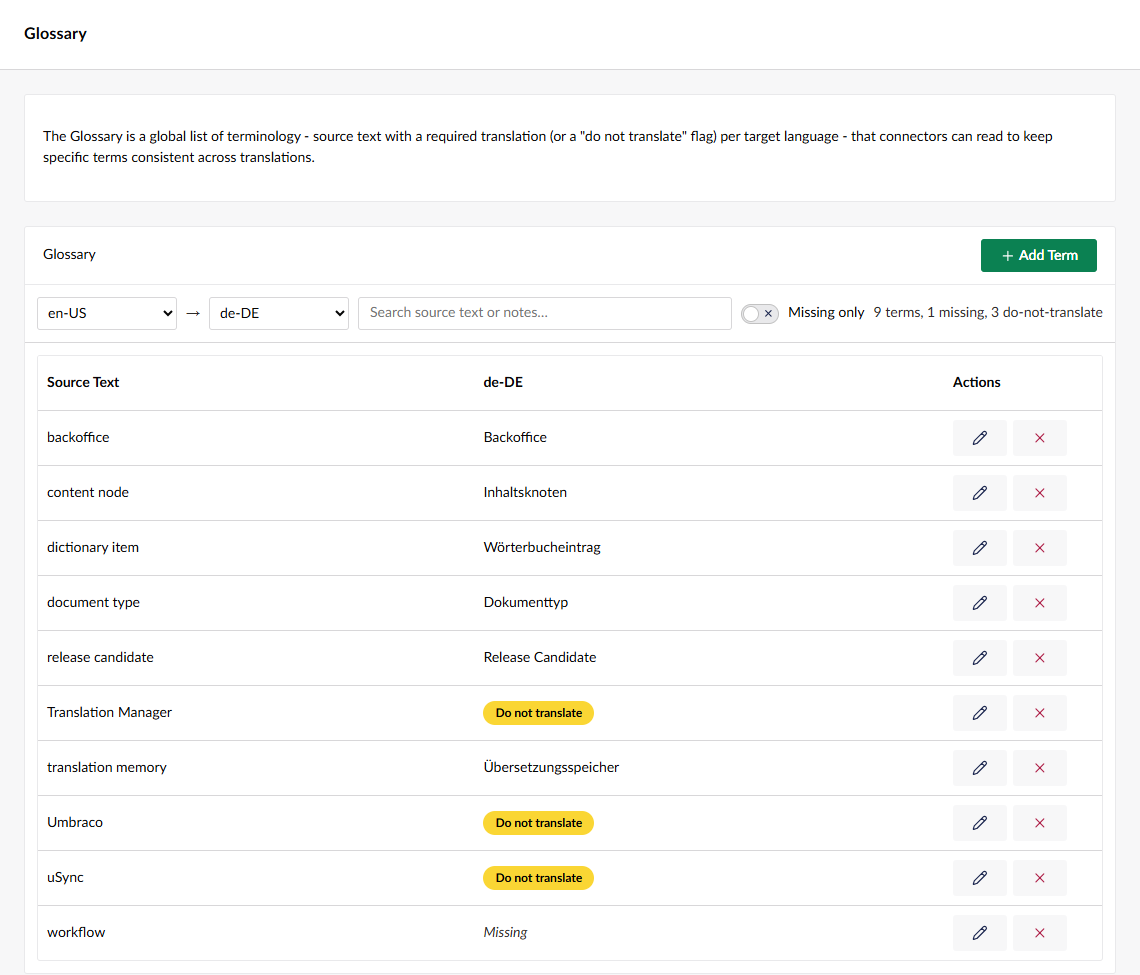
Seeing it needs the new View glossary permission. On upgrade only Administrators get it, so you'll need to add it to any other groups that should have it (and if you were logged in during the upgrade, log out and back in to see it).
Terms
A term is a bit of source text in a source language, with a value for each language you translate into. For each language you can either give the translation it must use, or switch on Do not translate, and the term is left exactly as written.
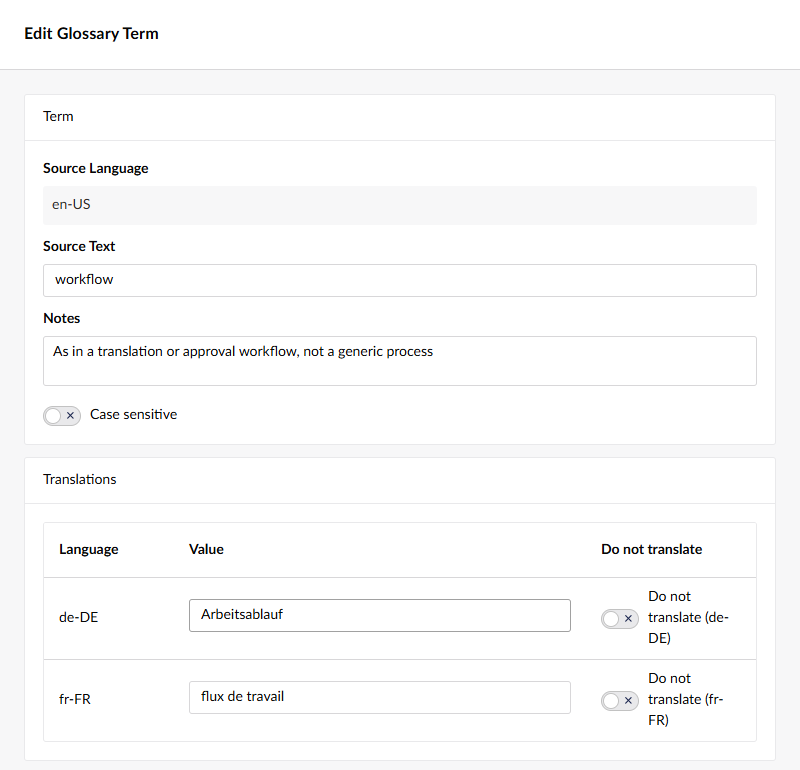
Terms can be case sensitive (off by default), which matters when "IT" the department and "it" the word need to be treated differently. There's also a notes field for your own benefit. Notes are never sent to the translation service.
The list has a Missing only filter, so when you add a new language you can work through the terms that don't have a value for it yet.
Import and export
Nobody wants to type in 400 terms, and quite often the list already exists somewhere: a spreadsheet the marketing team keeps, or a term base your translation agency has built up over the years.
So you can import and export in two formats:
- CSV. One language pair per file, with the culture codes in the header row (
en-US,fr-FR). An optional third column,doNotTranslate, set totruemarks a term that should be left alone. The export opens properly in Excel. - TBX. The standard term base exchange format that translation tools and agencies use. A TBX file can carry every language at once.
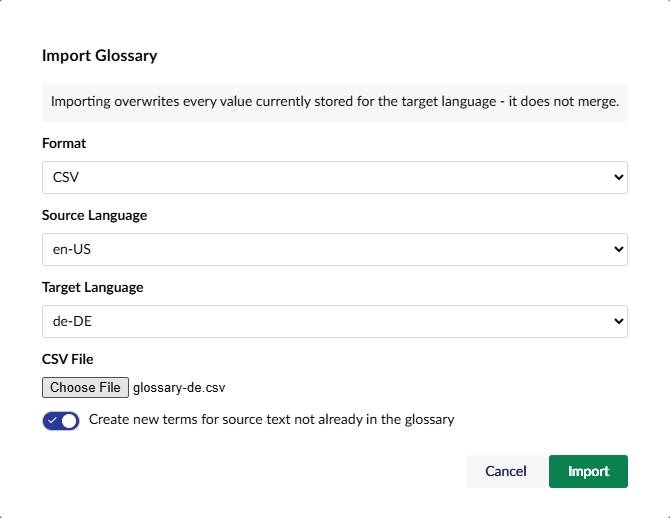
Importing replaces the values for the target language rather than merging with them, and the import tells you so before it starts. If the file can't be read, nothing changes.
Which connectors use it
This is the important bit, because a glossary only helps if the thing doing the translating reads it.
- DeepL (connector 17.3.0 and above). Translation Manager uploads your glossary to DeepL as a real DeepL glossary, one per language pair, and DeepL uses it during the translation. It only uploads again when the terms have changed. This is marked as a prototype in the connector for now, and it only works for the language pairs DeepL supports glossaries for.
- AI connector (17.6.0 and above). The terms for the language pair go into the prompt, with do not translate terms marked so the model copies them as they are. It works with all the AI providers the connector supports (OpenAI, Azure OpenAI, Claude, Gemini, GitHub Models and Ollama).
The built-in Google and Microsoft connectors don't use it yet, and neither does XLIFF (the human translators on the other end of an XLIFF file will have their own term base). The Glossary page tells you which of your active connectors support it, so you're not left wondering.
Turning it on
The Glossary is off by default. It switches on when a connector that supports it has its glossary option ticked (Use Translation Manager Glossary for DeepL, Use Glossary for the AI connector), or you can turn it on for the whole site in appsettings:
{
  "Translation": {
    "GlossaryEnabled": true
  }
}
For developers: there are notifications when terms are saved, deleted or imported (GlossaryUpdatedNotification is the one to watch), and base classes if you want your own connector to use the glossary.
Getting it
The Glossary is in Translation Manager 17.9 and above for Umbraco 17, and 18.3 and above for Umbraco 18.
dotnet add package Jumoo.TranslationManager
The user guide has the detail, including the CSV and TBX formats, and the changelog has the version by version breakdown.