uSync.Complete 17.6 (Umbraco 17) and 18.3 (Umbraco 18) are out, and along with the approvals we talked about in the release candidate post, they bring a new way to push things with Publisher: the Sync Queue.
dotnet add package uSync.Complete --version 17.6.0
The problem
Publisher has always been good at pushing one thing. You find the page, you push it, it goes.
Real changes don't usually look like that. An editor spends a week working on a new section, tweaks a couple of existing pages to link to it, uploads some images, and maybe someone adds a data type along the way. When it's ready, all of that needs to go to live, and the only way to do it was to remember every item and push them one at a time (or push a parent with its children and take everything else under it too).
Turning it on
The queue is switched on per server. Tick Allow queuing on the server's Permissions view in the Publisher settings, and users can add items to their queue and push them to that server from the Sync Queue dashboard.
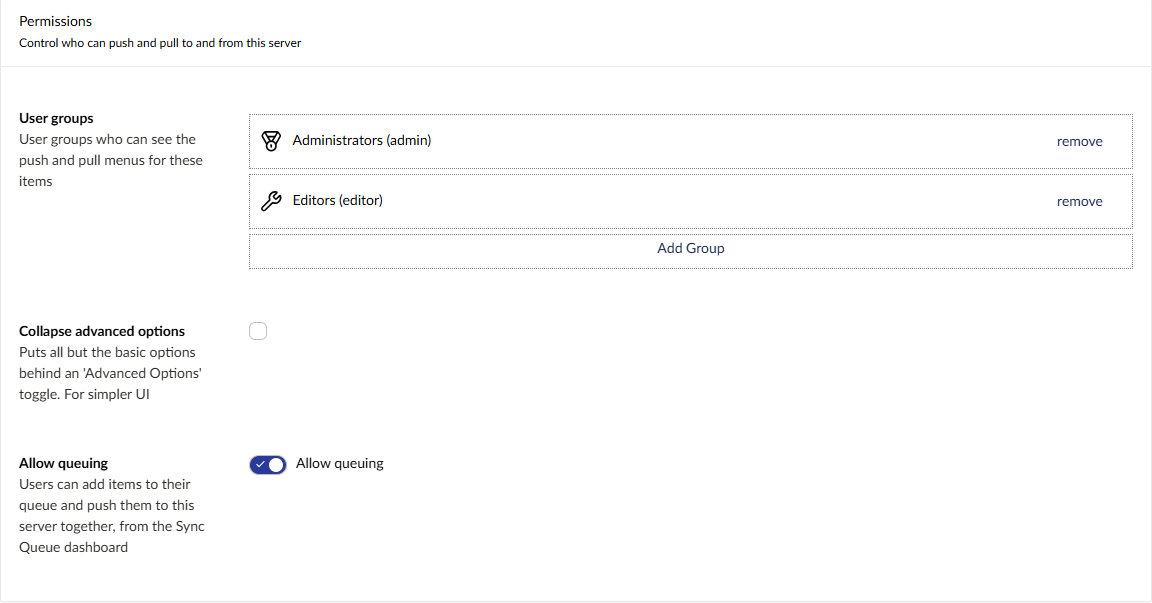
It's off by default. If no server allows queuing, nobody sees any of this.
Adding to the queue
Once a server allows it, Add to queue shows up in the actions menu for content and media, and for settings items too (document types, data types, templates and the rest). It's also in the content editor's push menu, and on the content and media browser dashboards.
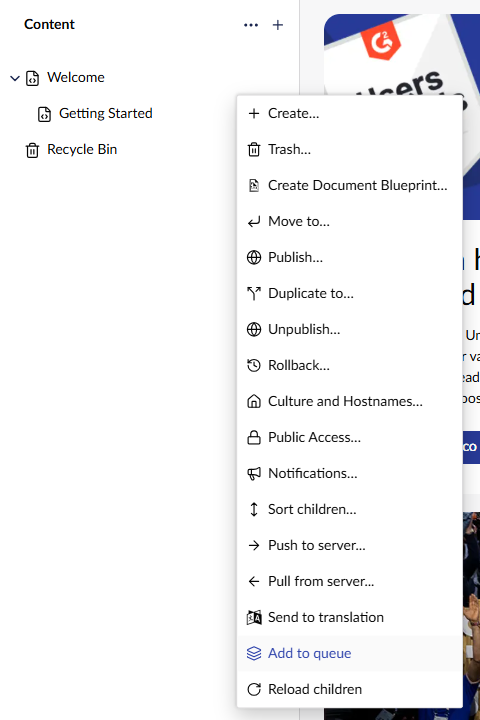
You only see it if you're allowed to push to a server that has queuing turned on.
The Sync Queue dashboard
Everything you've queued lands on the new Sync Queue dashboard in the Content section. The queue is yours, other people have their own, and it's kept in the database so it's still there tomorrow.
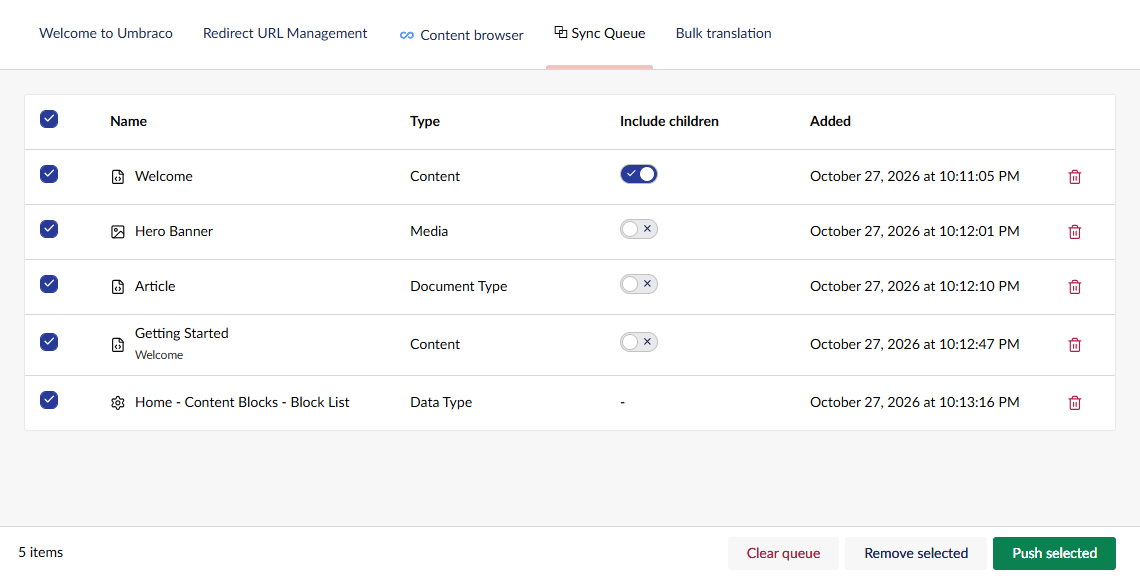
Each item has its own Include children toggle, so you can send a whole section in one row and just the page itself in the next. Pick the items you want, press Push selected, choose the server, and you're into the normal push dialog, with the usual report of what's going to change before anything does.
The queue isn't tied to a server. You choose where it's going when you push, from the servers that allow queuing.
What happens when you push
Items leave the queue when their push goes through. If the push fails, or you cancel it, everything stays where it was, so you can fix the problem and try again without rebuilding your list.
A few other things worth knowing:
- Deleted items are marked as deleted on the dashboard. You can't push them, only remove them.
- Moved items are fine. The queue keeps track of the item, not where it was.
- The same item can only be queued once, and a queue holds up to 500 items.
- If queuing is turned off on every server, you can still see and empty your queue, you just can't push from it.
Queues and approvals
If the server you push to needs approval, the queue works with it. The push stops at the report as usual, and your batch becomes one request for an approver to look at, rather than a request for every page.
One rough edge: items that went off for approval stay in your queue, even once the request is approved. For now you'll need to remove them yourself after the push has gone through (Remove selected does it in one go).
That's the combination we think a lot of teams will end up using: editors collect a week's changes in their queue, and send them to live as one request that someone signs off.
Getting it
The Sync Queue is in uSync.Complete 17.6 for Umbraco 17 and 18.3 for Umbraco 18.
dotnet add package uSync.Complete --version 17.6.0
dotnet add package uSync.Complete --version 18.3.0
There's a good set of fixes in this release too. The v17.6.0 release notes have the full list.